
 Download on the App Store
Description
Another Dock gives you a second dock — elegant, efficient, and intuitive — without disrupting your current setup. It helps you work faster by putting what you use most just a click away. Quickly access your favorite apps, folders, files and links with ease.
===============
Why do I need Another Dock?
The macOS Dock can quickly run out of space and disappears when apps are maximized. If you often find the built-in Dock’s position too limiting, Another Dock is a great choice. It gives you the flexibility to pin anything you need and keep it accessible at all times.
With Launchpad removed in macOS 26, Another Dock lets you keep more of your favorite apps at hand — no more digging through a cluttered list.
===============
FEATURES:
• Pin any file, folder, app or link — and keep it always accessible
Another Dock lets you add anything you need and stays visible even when apps are full screen.
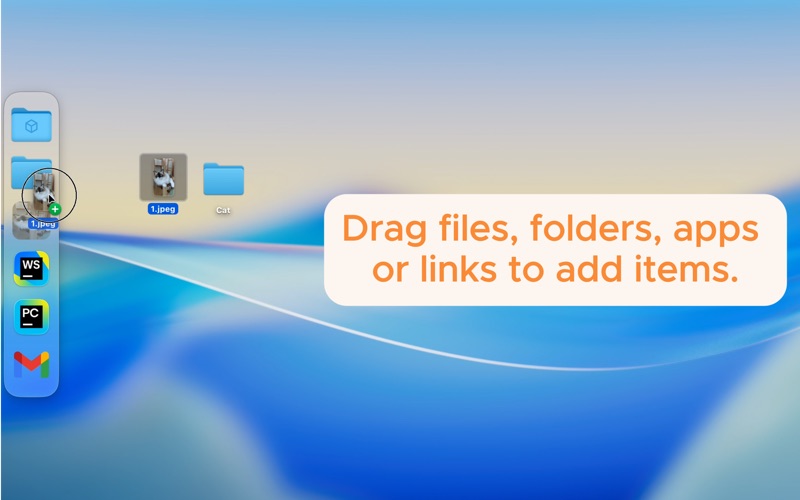
• Drag to Add
Easily add files, folders, apps or links by dragging them into the dock.
• Create Groups
Keep your Dock clean and organized. Right-click to create a group, then drag items into it for better organization.
• Multi-Row & Multi-Column
Support multiple rows and columns for holding more items.
• Rename & Customize Icons
Rename items or change their icons to match your workflow and style.
• Drag to Open With & Move To
Drag files onto app or folder in the dock to quickly open them with a specific app or move them into a specific folder.
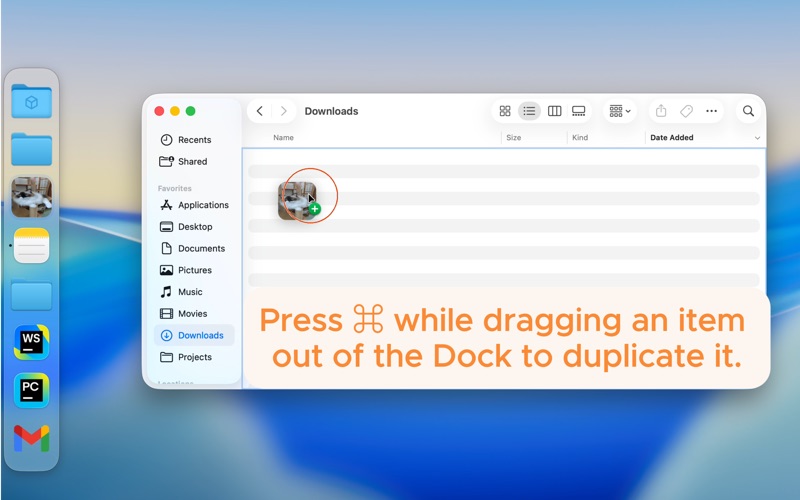
• Drag to Remove or Duplicate
Drag items out of the Dock to remove them, or hold ⌘ while dragging to duplicate.
• Click to Launch
Instantly open any item with a single click. Visual indicators show which apps are currently running.
• Reorder with Drag & Drop
Customize your layout by simply dragging items around.
• Auto-hide Support
Keeps your screen clean — Another Dock appears when you need it, and hides when you don’t.
• Right-Click Menu
Remove or manage dock items with a convenient context menu.
• Movable & Edge-Snapping
Freely move the dock anywhere, and it automatically snaps to the left or right edge of the screen.
• Customizable Shortcut Key
Quickly toggle the dock with a keyboard shortcut — set your own for faster access.
• Native-style Design
A seamless, minimal interface that blends right in with macOS.
• Light & Dark Mode Aware
The dock theme can follow the system appearance or be set manually in Settings.
===============
• How do I hide the Another Dock icon?
Right-click on the dock, open "Settings -> System", then uncheck "Show Another Dock icon in system Dock".
• How do I move the dock?
Right-click on the dock and check "Movable Dock". Then, press and hold the button at the top of the dock to drag it to your desired position.
• How do I change icon size, icon spacing and dock width?
Right-click on the dock, open "Settings -> Appearance", then adjust the available options as needed.
• The Dock triggers too easily and distracts me?
Right-click on the dock, open "Settings -> System", then try increasing the Show Trigger Delay to make it less sensitive.
• After unplugging an external display, I can’t find the dock placed on that screen.
If the Dock doesn’t automatically reset, you can force it to show and reposition by using the shortcut. The default shortcut is ⌘+⇧+H.
===============
Contact: ahrisyy@gmail.com
Terms of Use: https://www.apple.com/legal/internet-services/itunes/dev/stdeula/
Screenshots